
Edit Canva Videos? Creating professional-looking videos doesn’t require expensive software. Canva’s built-in video editor is powerful yet simple. In this guide, we’ll walk through the essential steps to edit your project, add a soundtrack, and export your final file. This is applicable for projects like Canva Slideshows, home movies and more
Canva makes video editing simple and fun. Follow these steps to create and finalize your video masterpiece.
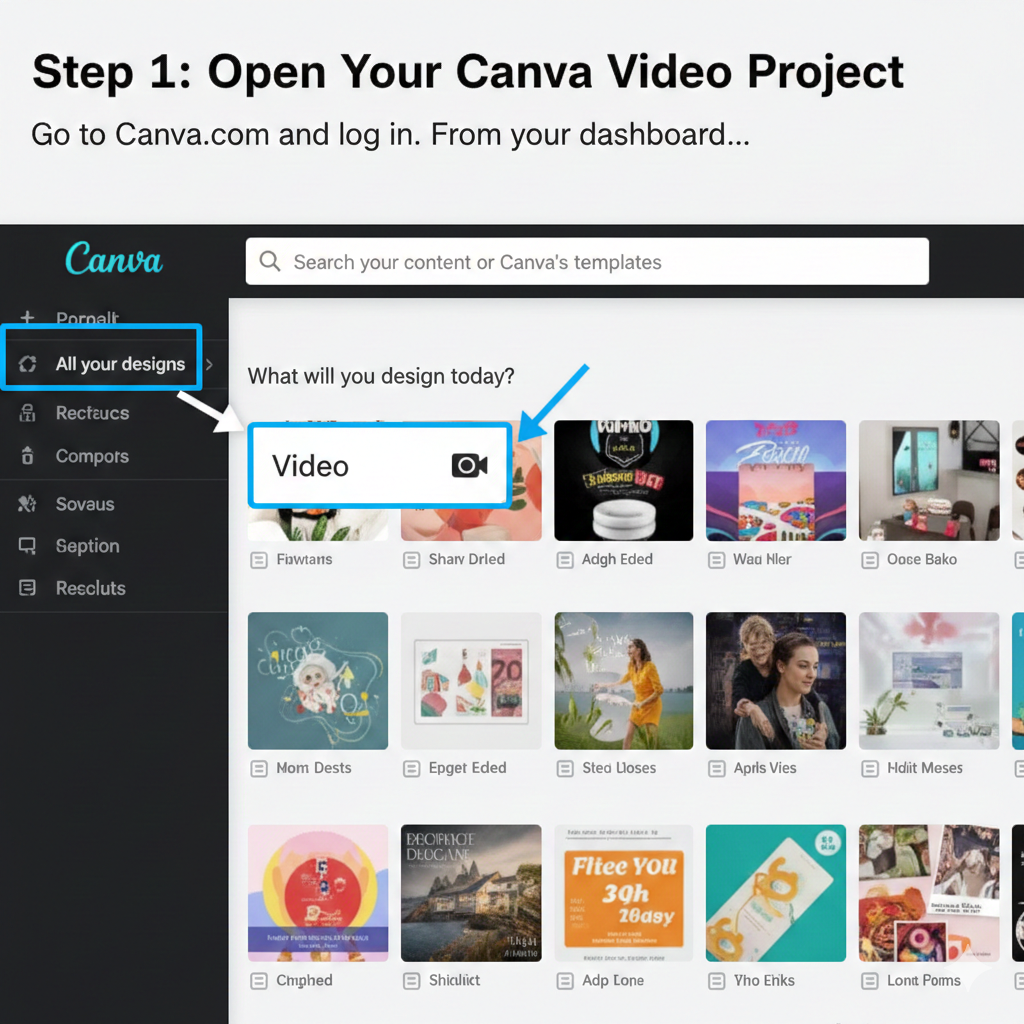
Step 1: Open Your Canva Video Project
First, you need to open an existing video project or start a new one.
- Go to Canva.com and log in.
- From your dashboard, you can either search for “Video” to start a new project or go to “All your designs” to open an existing one.
.
Step 2: Navigate the Video Editor Interface
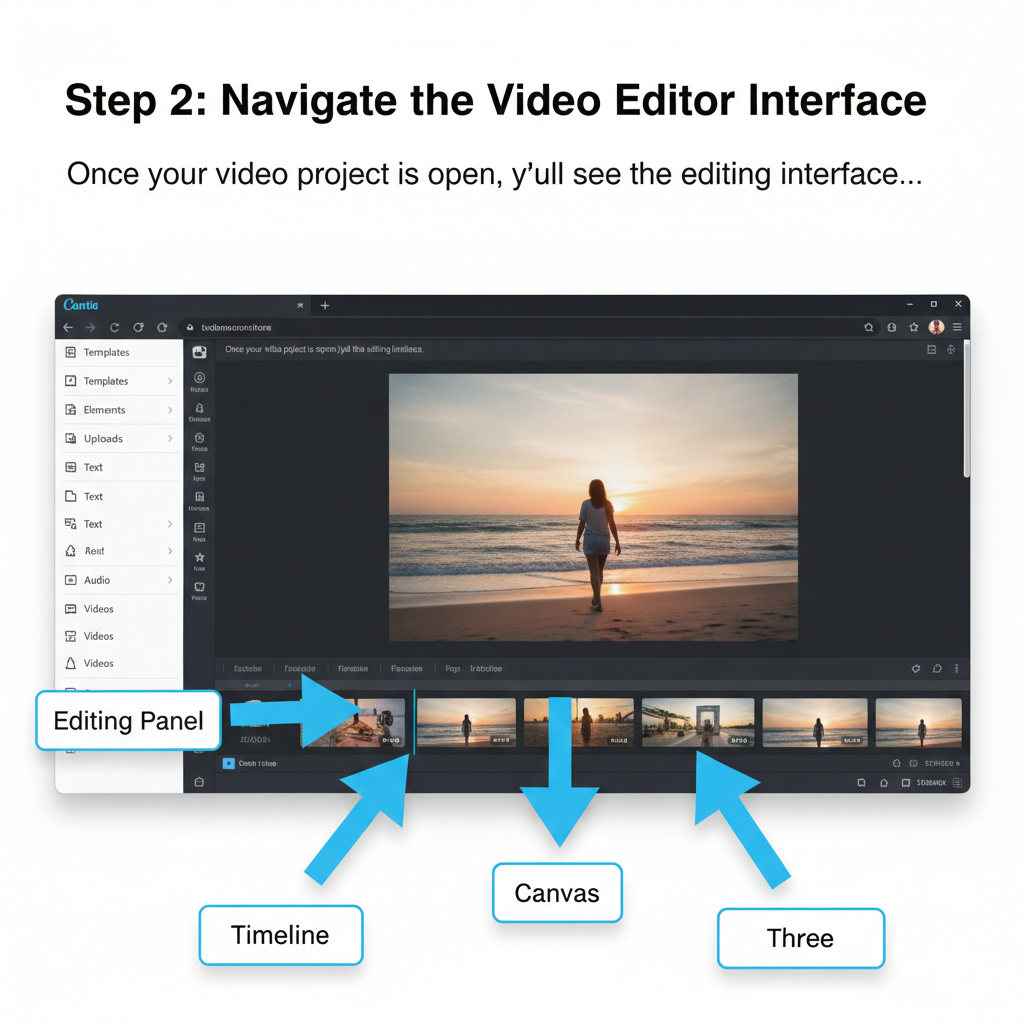
Once your video project is open, you’ll see the editing interface.
- Timeline (Bottom): This is where you arrange your video clips, images, and audio. Each “page” in Canva’s video editor represents a scene or clip.
- Canvas (Center): This is the preview area where you can see your video.
- Editing Panel (Left): This panel contains all the tools you need: templates, elements, uploads, text, photos, audio, videos, and more.
.
Step 3: Editing Your Video Clips
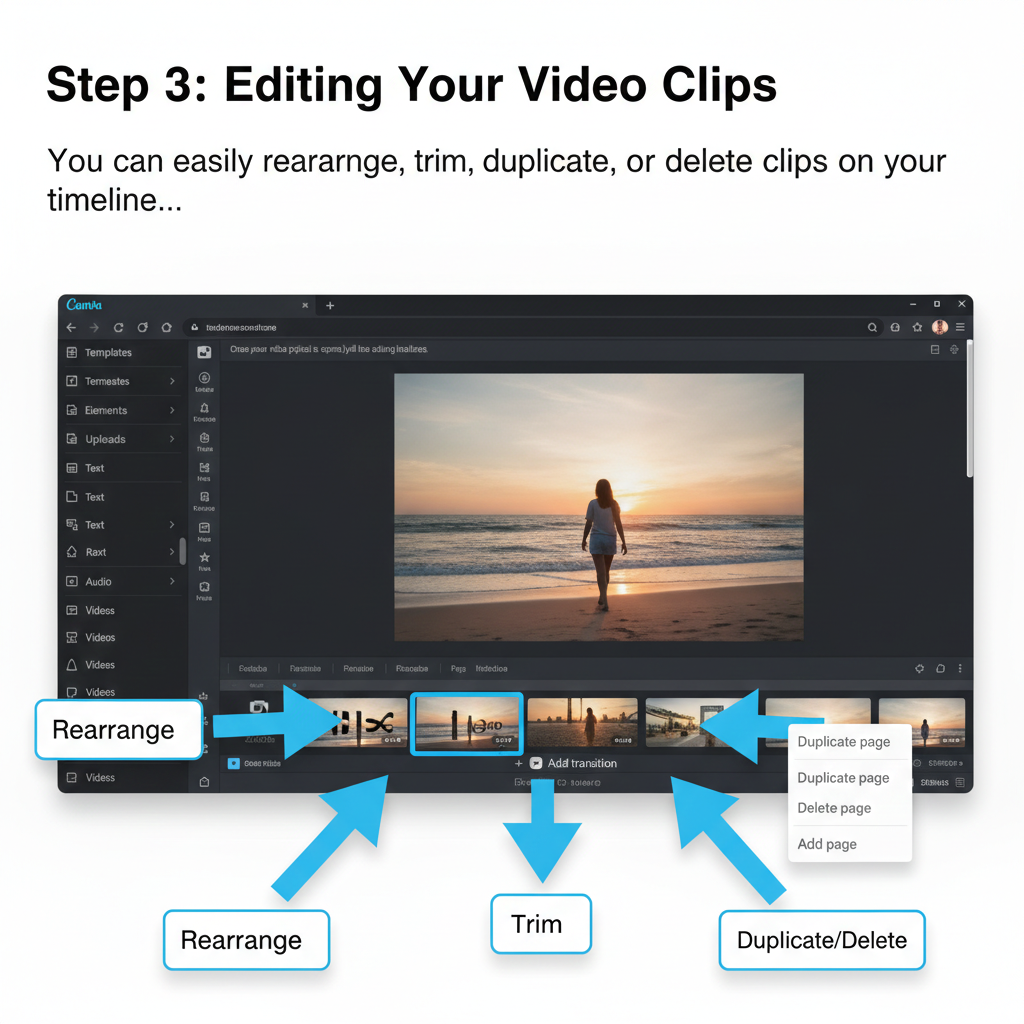
You can easily rearrange, trim, duplicate, or delete clips on your timeline.
- Rearrange: Click and drag a clip (page) on the timeline to change its order.
- Trim: Select a clip on the timeline. Then, click the scissors icon above the timeline to adjust the start and end points of the video or image duration. You can also drag the ends of the clip directly on the timeline.
- Duplicate/Delete: Click the three dots (…) on a clip in the timeline for options to duplicate the page, delete the page, or add a new page.
- Add Transitions: Hover between two clips on the timeline and click “Add transition” to choose from various effects.
.
Step 4: Adding Text, Elements, and More when you Edit Canva Videos
Enhance your video with text, graphics, and other media.
- Text: Click “Text” in the left panel to add headings, subheadings, or body text. You can customize fonts, colors, and animations.
- Elements: Click “Elements” to add shapes, lines, graphics, stickers, photos, and videos from Canva’s library.
- Uploads: Click “Uploads” to bring in your own images, videos, or audio files.

.
Step 5: Adding Music to Your Video when you Edit Canva Videos
Music can dramatically improve your video.
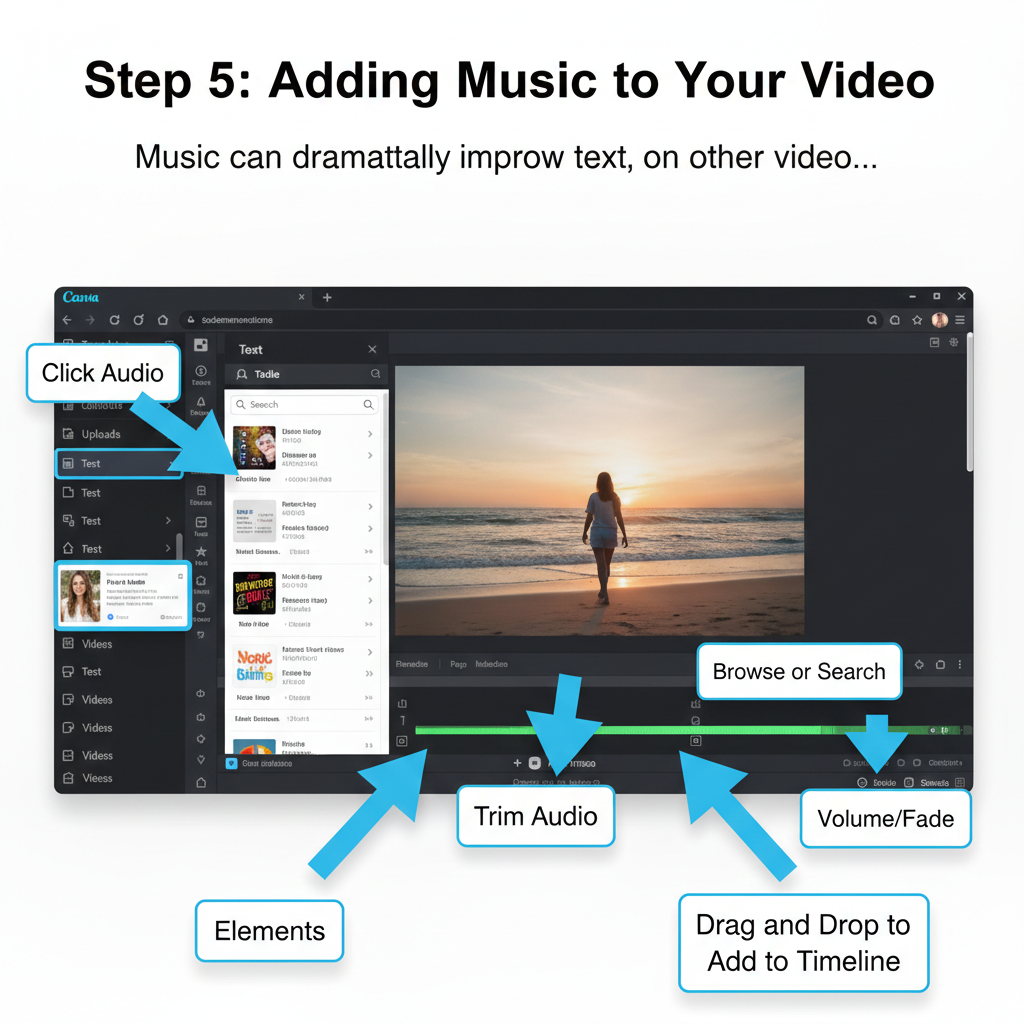
- Click “Audio” in the left-hand editing panel.
- Browse or Search: You’ll see a selection of audio tracks. You can browse by genre or mood, or use the search bar to find specific songs or sounds.
- Add to Video: Click on an audio track to preview it. If you like it, drag and drop it onto your video timeline. The audio track will appear below your video clips.
- Adjust Audio:
- Click on the audio track in the timeline.
- Trim: Drag the ends of the audio track to adjust its length.
- Volume: Click the volume icon on the audio track to adjust its level.
- Fade: If you want the music to fade in or out, click the audio track and look for fade options in the toolbar above the timeline.
How To Add Audio To Canva Video – Full Guide
.
Step 6: Download Your Video as an MP4 File after you Edit Canva Videos
Once your video is perfect, it’s time to download it.
Save File: Once processed, your browser will prompt you to save the .mp4 file to your computer.
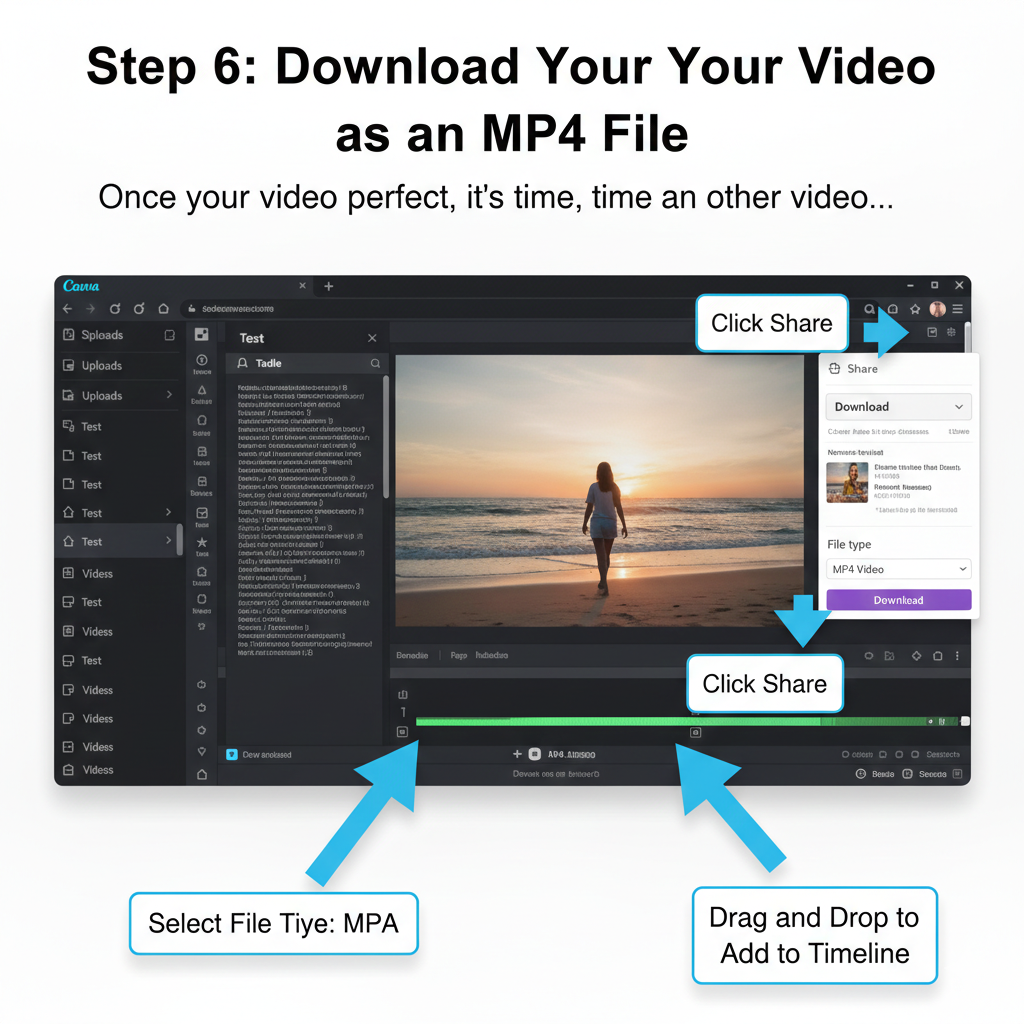
Click “Share” in the top right corner of the Canva interface.
Click “Download.”
Select File Type: The suggested file type for videos is usually “MP4 Video.” Ensure this is selected. If not, click the dropdown menu and choose “MP4 Video.”
Click “Download”: Canva will prepare your video for download. This may take a few moments, depending on the length and complexity of your video.
Frequently Asked Questions
Can I edit videos on the Canva mobile app?
Yes! The steps are very similar. Tap the “+” icon to add media and use the bottom toolbar to trim or add music.
Is the music in Canva copyright-free?
Canva offers a library of royalty-free tracks. If you have a Canva Pro account, you can use them for commercial projects without worrying about copyright strikes.
Why is my MP4 download taking so long?
The processing time depends on the length of your video and the number of elements used. Keep the tab open until the bar reaches 100%.


